Generate
Describe the function, dimensions and manufacturing intent.
 PurCadDocs
Product documentation
A practical product handbook for turning a measured requirement into editable, checked and exportable CAD in PurCad.
Describe the function, dimensions and manufacturing intent.
Review geometry, dimension sources and assumptions.
Resolve blockers and download the format the next tool needs.
Start here
Choose a guide for the file format, part type, or design decision in front of you.
Getting started
PurCad keeps the whole job in one workspace: the request and references on the left, the model in the center, and editable data on the right. The history bar below keeps every generated or restored version.
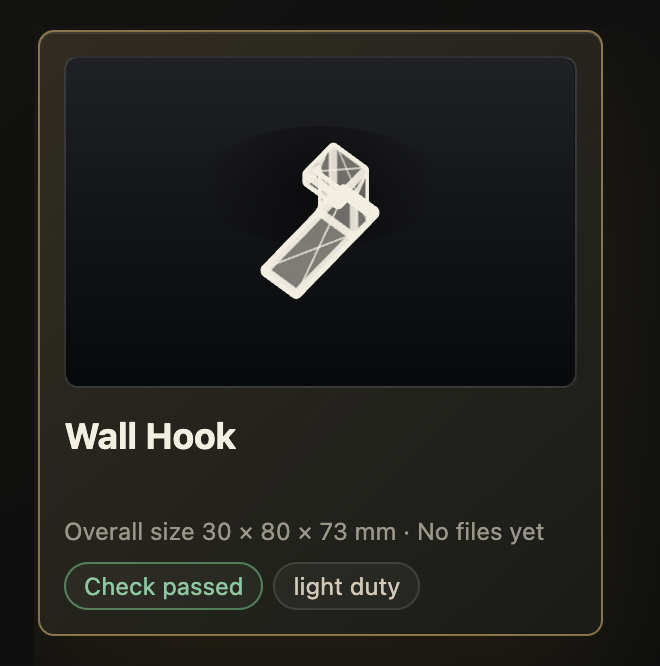
Wall hook, 30 mm wide plate, two 5 mm holes 50 mm apart, 3 mm wall, rounded exposed edges, for light indoor loads.Each card represents one project. Its preview, overall size, file state, validation outcome and risk class let you decide what is safe to reopen without guessing.
Generate
Describe engineering intent, not just appearance. A useful request usually contains five things:
| Include | Example |
|---|---|
| Function | Holds a 22 mm tube against a wall |
| Interfaces | Two M5 screws, 50 mm apart |
| Critical sizes | 22.4 mm bore, 3 mm wall |
| Manufacturing | FDM print, no support inside the bore |
| Risk and load | Indoor, static, under 2 kg |
Add photos when they communicate shape or installation context better than text. Images are approximate visual references, not exact geometry. Enter a known length from the same plane as the feature you care about.
Quality sets the starting credit price for a new generation. Focused refinements of an existing part are charged for the work required and usually use fewer credits. Credits may be reserved while a request runs; unused balance remains available afterward.
| Mode | Use it for | New generation from |
|---|---|---|
| Fast | Early concepts and straightforward parts | 25 credits |
| Balanced | Normal functional parts | 50 credits |
| Careful | Complex geometry and final-quality work | 85 credits |
Current packs: $5 / 100 credits (up to 4 Fast), $25 / 650 (26 Fast, 13 Balanced or 7 Careful), and $100 / 3,000 (120 Fast, 60 Balanced or 35 Careful). These counts estimate new generations; focused refinements usually let the same pack cover more iterations.
Back to top ↑The generation panel moves through understanding, building and checking. Keep the project open until the request finishes. A successful job creates a new version; a failed job leaves the previous version current and reports the error.
Inspect & edit
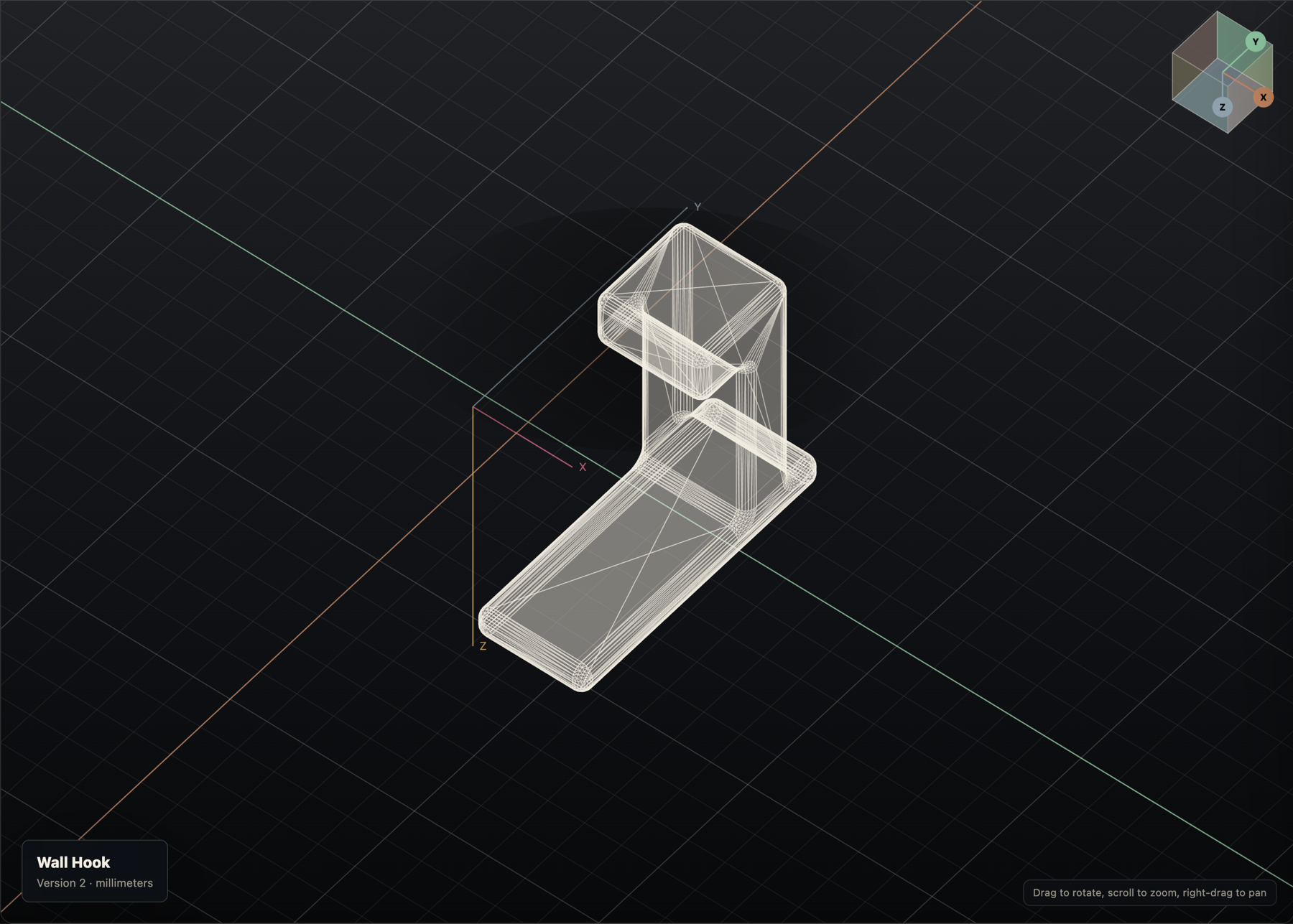
| Action | Control |
|---|---|
| Orbit | Drag |
| Pan | Right-drag or Shift + drag |
| Zoom | Scroll, + or − |
| Step rotation | Arrow keys |
| Reset view | 0 or Reset view |
| Axis view | Click X, Y or Z on the view cube |
The Sizes tab separates values you supplied from reasonable defaults inferred by the model. Edit the number, not the label; the unit remains millimeters.
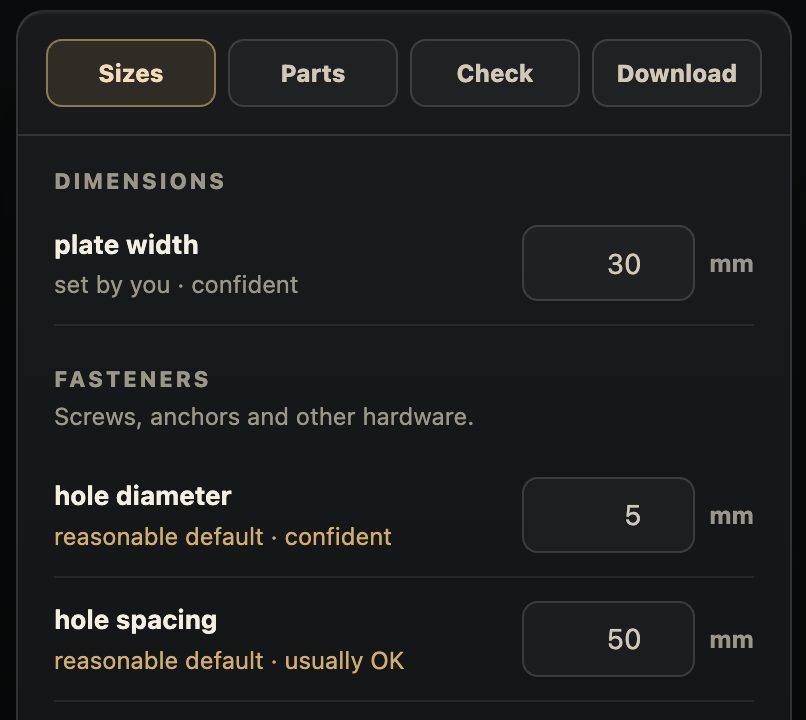
Solid is the normal shaded view. Section cuts the preview along X, Y or Z and can hide either side. Measure lets you select a visible edge and read its length. Use these modes to inspect the generated result; edit authoritative dimensions in Sizes.
Back to top ↑| Action | What happens |
|---|---|
| View | Inspect an older version without changing the project head. |
| Make current | Move the current pointer to an existing version without deleting later versions. |
| Restore as new | Create a new version from the selected historical state and continue from it. |
Validate & export
Check combines geometry results, blocking issues, warnings, the declared risk category and model assumptions. Resolve blocking issues before export and read every assumption that affects fit, wall thickness or mounting.
| Format | Best for |
|---|---|
| STEP | Mechanical CAD exchange, inspection and CAM |
| STL | Broad slicer compatibility |
| 3MF | Modern packaged print workflows |
| OBJ | Mesh tools that specifically require OBJ |
Select the formats in Download, then prepare the export package. Downloads are tied to the selected project version.
Back to top ↑Reference
| Key | Action |
|---|---|
| ← ↑ ↓ → | Rotate in fixed steps |
| + / − | Zoom in / out |
| 0 | Reset the camera |
| ? | Open the shortcut overlay |
| / | Focus documentation search |
| Escape | Close an open dialog |