
STL repair · STEP validation
STL repair online: check and fix your 3D model
Upload your STL, inspect open edges, face orientation and disconnected fragments, then select a supported repair. Preview the change before saving a separate repaired copy. This guide shows the process on a real model and explains which openings should stay.
Open File check to upload an STL or STEP. Checking and saving use credits; repair previews are free. Costs are shown before paid actions.
Which STL errors can be repaired?
An STL stores a surface as triangles. Repair changes that surface: it can remove duplicate or zero-area faces, correct face orientation or close an eligible missing patch. It does not recover the original CAD features, infer a screw size or decide which openings your part needs.
Start with a check when a slicer reports a non-manifold model, omits a wall, fills a cavity unexpectedly or shows detached fragments. Repair the cause you can identify, then inspect the sliced result again. A lower error count is useful only if the part still has the intended shape.
Prusa documents the same practical limit: slicers can repair some damaged models, but automatic repair does not resolve every file. Prusa: corrupted 3D models.
A real STL: the preview looks plausible, the report needs attention
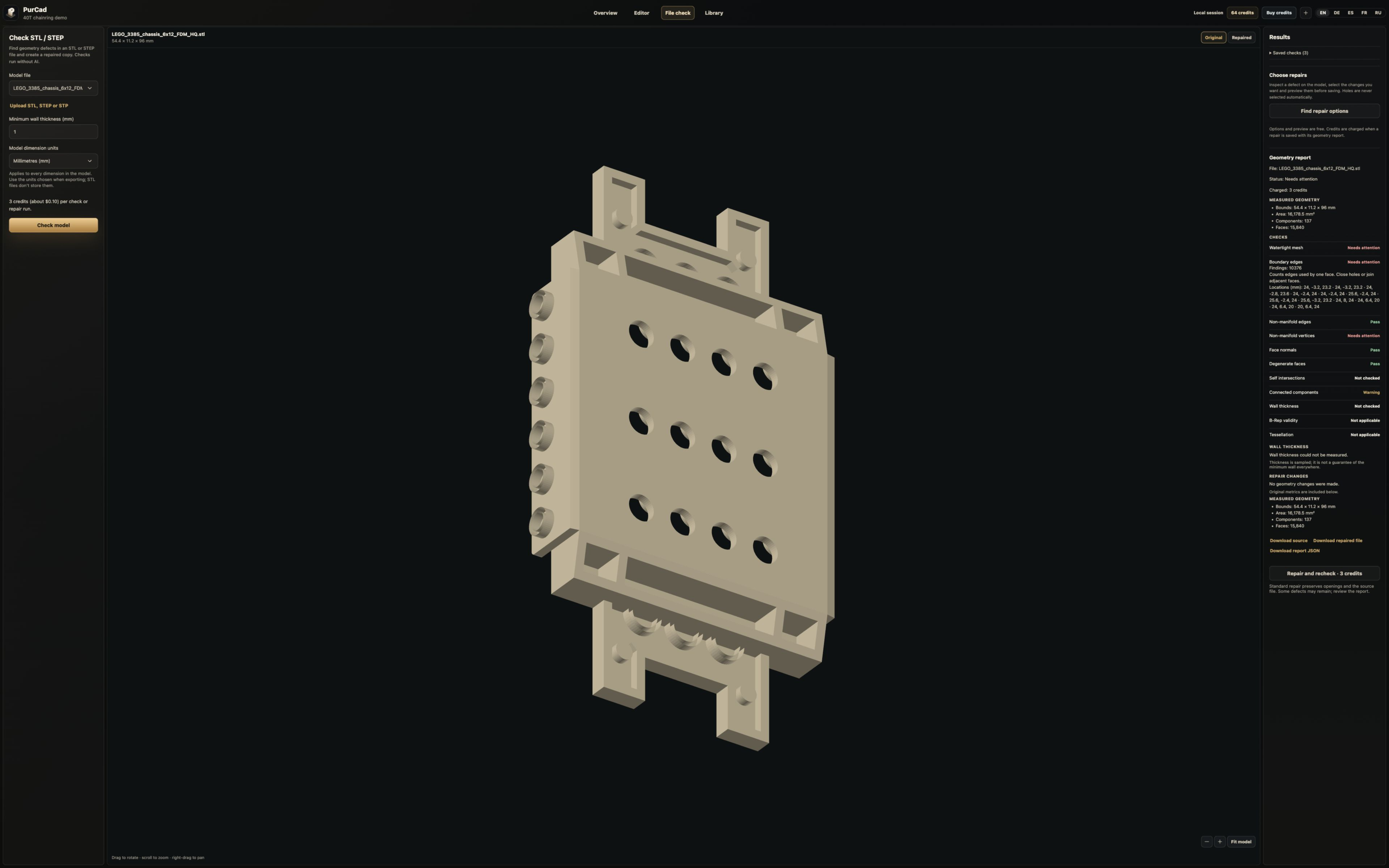
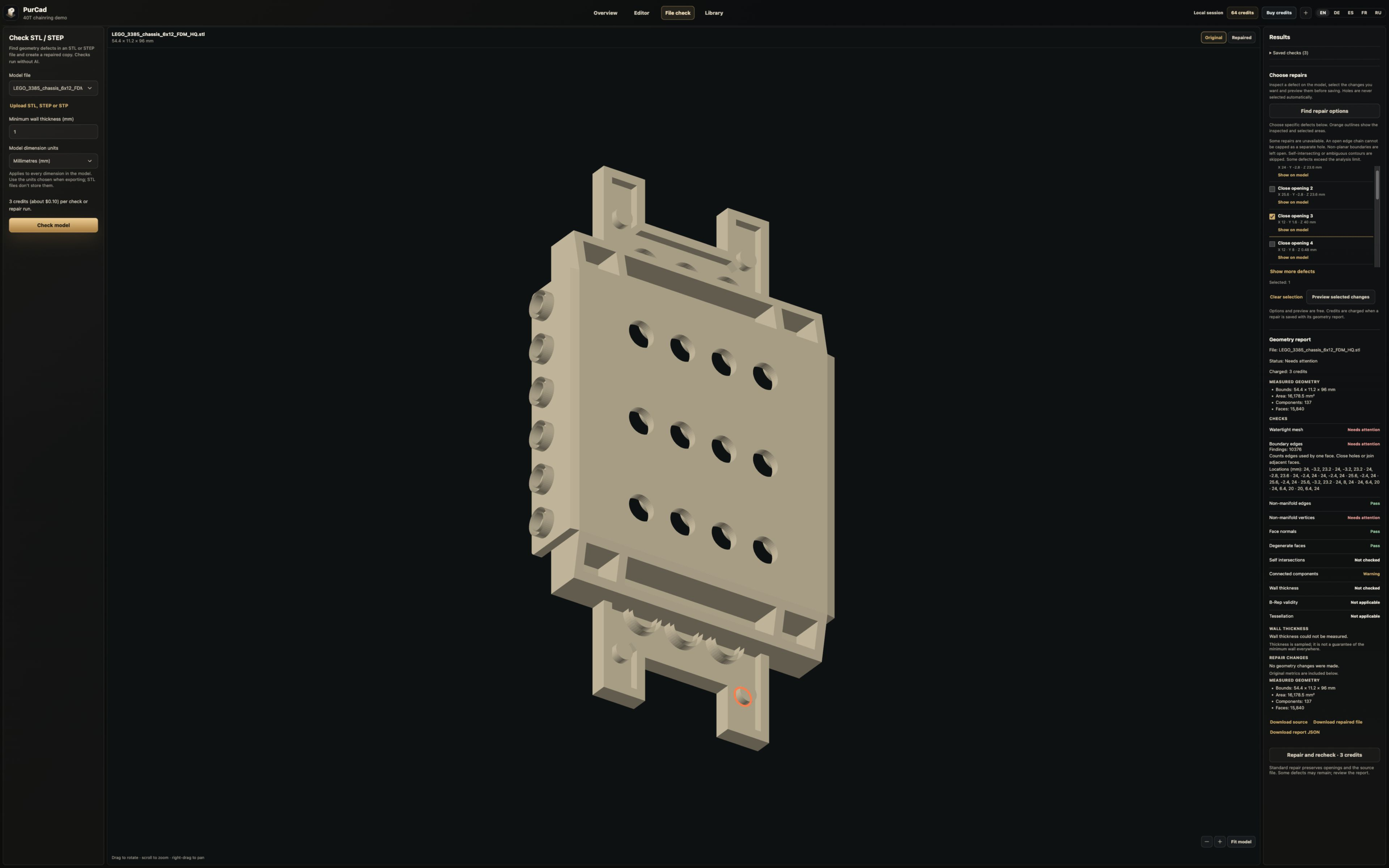
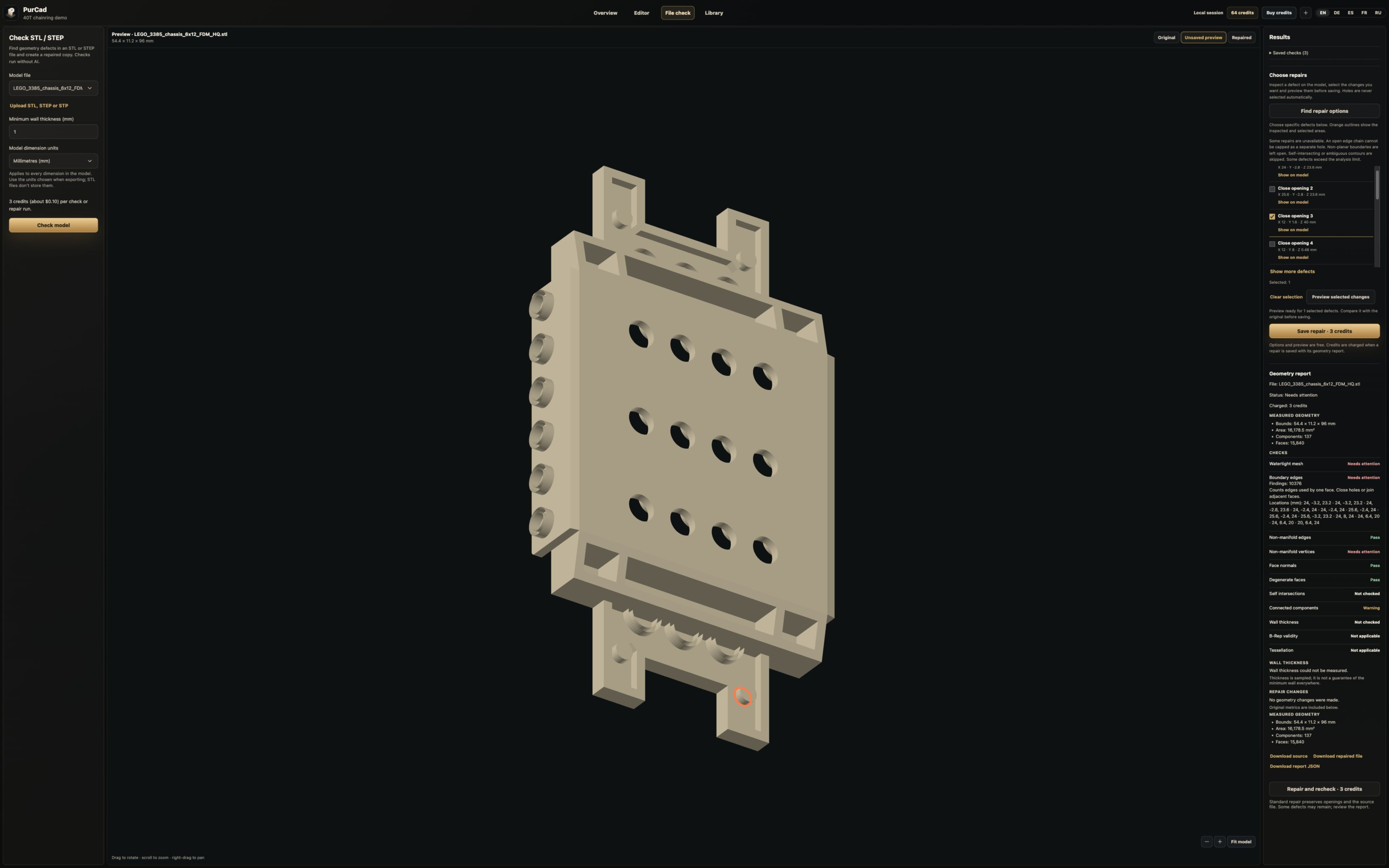
Our example is LEGO_3385_chassis_6x12_FDM_HQ.stl, opened in PurCad’s file-check workspace. The chassis has mounting openings and small details that matter to its shape. The screenshots follow the report, inspection of a boundary, manual selection and a repair preview.
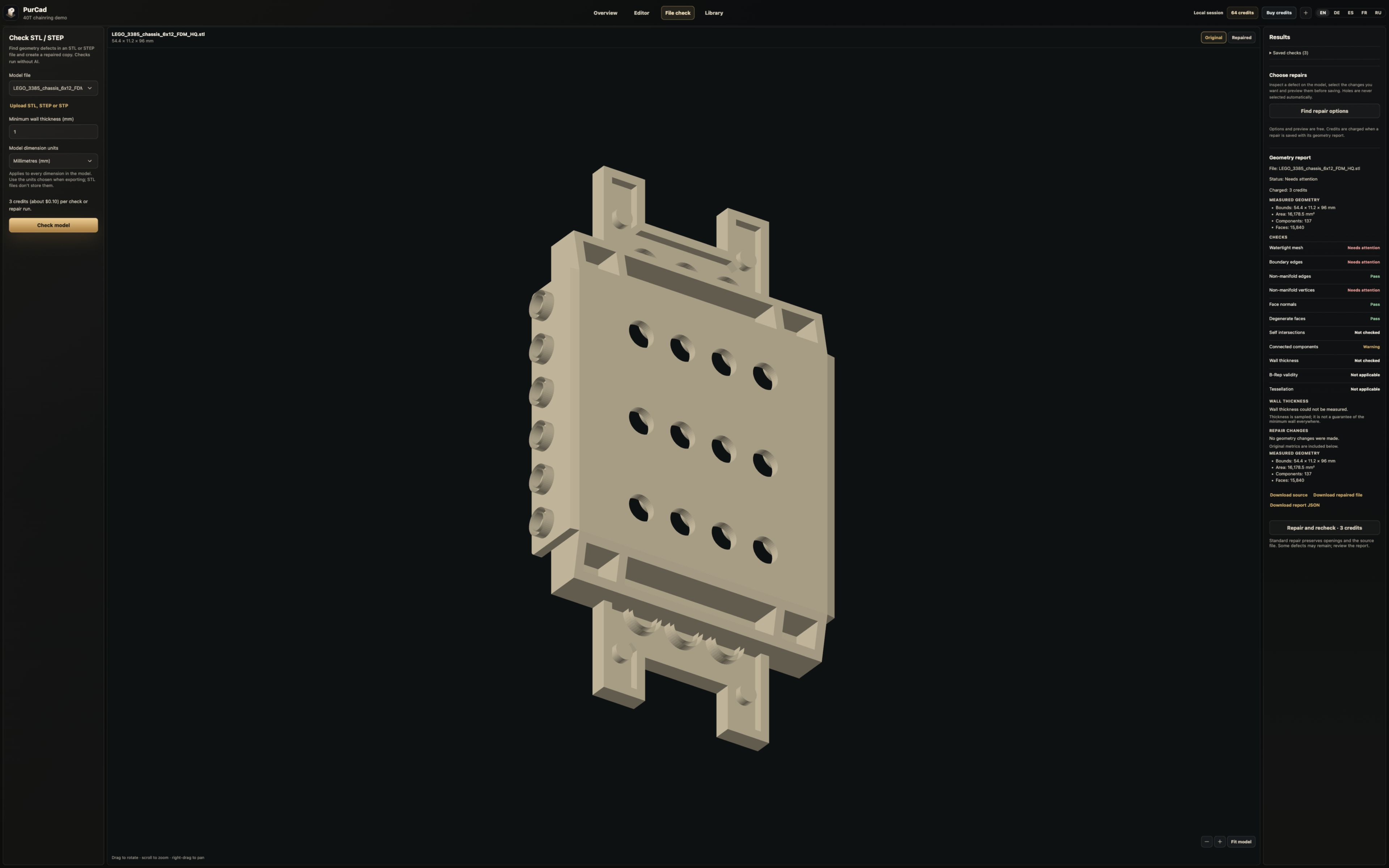
The report records 15,840 triangles, 137 connected mesh components and 10,376 boundary edges. Those are topology counts: they do not mean 137 intended physical parts or 10,376 holes that should be filled. The displayed bounds are 54.4 × 11.2 × 96 mm.
This example demonstrates diagnosis and an unsaved preview. The overall result still needs review; it is not evidence of a completely repaired or successfully printed chassis.
The screenshots show the English interface. The steps below describe the same file-check workflow.
How do I identify open edges, non-manifold geometry and flipped faces?
Inspect each result separately. “Passed” means that particular check found no issue within its scope. A warning or failure needs investigation. “Not checked” leaves an unanswered question; “not applicable” means the check does not belong to that representation. Neither is a pass.
| Check | What to inspect |
|---|---|
| Watertightness and boundary edges | A boundary edge belongs to only one triangle. It can mark a missing surface patch or an intentionally open sheet. Locate it before deciding whether closing it is correct. |
| Non-manifold edges and vertices | Ambiguous connections can prevent the surface from defining a clean solid. Inspect where surfaces meet; closing an unrelated hole will not resolve every non-manifold connection. |
| Normals and damaged faces | Inconsistent face orientation, repeated triangles and zero-area triangles are different defects. Use the corresponding available repair instead of treating them all as holes. |
| Connected components | Separate regions may be intended parts, fragments or surfaces that never joined. Compare them with the design. More than one component is not automatically an error. |
| Intersections and wall thickness | These analyses have limits. Wall thickness uses samples and does not prove a global minimum. Intersection checking may stop or be skipped for a large mesh. Read the coverage and status before relying on either result. |
How can I close a hole in an STL without filling a screw hole?
A correctly modelled through-hole has an inner wall connected to the surrounding surface. The part can have mounting holes and still be watertight. A hole in the mesh is a missing piece of surface. Confusing the two can turn a repair into an unwanted design change.
Before selecting a closure, rotate the model and identify what the contour belongs to: a missing face, an opening in a surface model or a feature that must remain. PurCad highlights the candidate contour. Selection is your decision; the tool cannot infer the intended fit of a screw, axle or cover.
How do I repair an STL file online in PurCad?
1. Upload the file and confirm its scale
Open File check and upload an STL, STEP or STP file, up to 50 MiB. For STL, choose the source unit: millimetres, centimetres or inches. STL has no reliable unit metadata. Compare the displayed dimensions with a known measurement before interpreting wall thickness or preparing a print.
2. Run the check and inspect the affected area
Review the quoted credit cost before starting the check. Read the overall status, expand the relevant diagnostics and inspect the model. Keep track of checks that were skipped. In the example, the mesh exceeds the current 12,000-face limit for some analyses, so an unchecked result must not be treated as a clean result.
3. Select an available repair
For STL, supported candidates can include duplicate-face removal, degenerate-face removal, normal correction and closure of suitable planar boundary loops. The available options depend on the file. Irregular, open or non-planar boundaries may have no supported closure. Selecting one candidate does not authorize changes to every other opening.
4. Preview before saving
Preview the selected changes without saving a repaired file. Compare the highlighted region, silhouette, mounting features and dimensions. If the choice changes, request a new preview. Leave a candidate out if the result removes an intended feature; a preview is a chance to reject the change.
5. Save a separate copy and inspect it in the slicer
When the preview matches your intention, save the selected repair at the displayed credit cost. PurCad retains the original and provides the repaired file separately, with a validation report. Download the result, compare critical dimensions and inspect the layer preview in your slicer before printing.
Can I check STEP and STP files too?
STL contains triangles; STEP can carry CAD surfaces and their topological relationships. PurCad checks STEP/STP shape validity with Open CASCADE and also inspects a tessellated representation. STEP dimensions are handled in millimetres in this workflow. Passing a mesh check alone is not the same as passing the CAD-shape validity check.
Open CASCADE: BRepCheck_Analyzer shape validity.
Selective STEP repair can cap eligible closed boundary wires when the geometry supports that operation. It is not a universal reconstruction of a broken CAD solid. STL triangle cleanup should not be confused with editing STEP surfaces, restoring a feature tree or recovering missing design intent.
The tessellation check samples distances between the generated mesh and the CAD shape. It does not guarantee a maximum error everywhere. If you need to change the part’s dimensions or construction, return to an editable model rather than trying to express that design change as file repair.
Does a repaired STL mean the model is ready to print?
Watertightness describes a surface property. It does not prove that a thin clip will survive bending, that two parts will fit or that a printer can produce every detail. Sampled wall checks can miss local thin areas. Material, orientation, clearances and slicer settings still affect the result.
Before you print the repaired file
- Compare overall dimensions and critical interfaces with the original requirement.
- Check that holes, slots, cavities and contact faces you need are still present.
- Read the new report, including warnings, remaining defects and unchecked items.
- Inspect sliced layers for missing walls, unexpected solid regions and disconnected islands.
- Test fit and function on a prototype when the part’s use depends on them.
Exporting STL for the next step · Preparing CAD for 3D printing
STL repair questions
Can I preview an STL repair for free?
Yes. Once a checked file has repair options, inspecting those options and previewing selected changes do not use credits. Running the initial check and saving a repaired file are paid actions with a cost shown in the interface.
Can PurCad fix every non-manifold STL automatically?
No. Supported repairs address specific detected conditions. Some boundaries cannot be closed safely, and one repaired defect may leave others. Review the resulting report and return to the source CAD model when the needed change is outside the available operations.
Will repair overwrite my original file?
No. The original remains available, and saving a repair creates a separate result. You can download the source, the repaired file when one exists, and the validation report.
Can I check STEP or STP files too?
Yes. PurCad accepts STEP and STP, checks CAD-shape validity and reports applicable mesh and geometry checks. Available STEP repair operations differ from STL triangle repairs.
Does watertight mean ready to print?
No. A closed surface can still have unsuitable wall thickness, wrong dimensions or details that fail in a chosen process. Use geometry checks together with dimensional review, slicer inspection and a fit test where needed.
Start with your file and see what needs attention
Upload an STL or STEP, check its geometry and inspect supported changes in PurCad. Keep the original, review the preview and save only the repair you intend.
Technical references
The screenshots document the PurCad workflow described here. For background on mesh repair and CAD-shape validity, see the primary documentation below.